Flutter App Works in Debug but Not in Release? 7 Causes and How to Test Each (2026)
Why does my Flutter app work in debug but not in release?
Because a Flutter release build is a different program from the debug build you tested: assertions are switched off, R8 shrinks the Android code, the manifest that granted internet access during development no longer applies, and the APK is signed with a different key. Most "works in debug, broken in release" reports come down to one of seven causes, and each has a quick test. Checked against the Flutter and Android documentation on 2026-11-11.
GSPTeck is giosaia's indie studio building mobile and web apps with Flutter and Firebase. The seven causes below are the ones we check, in this order, before every Google Play upload.

What actually changes between a debug and a release build?
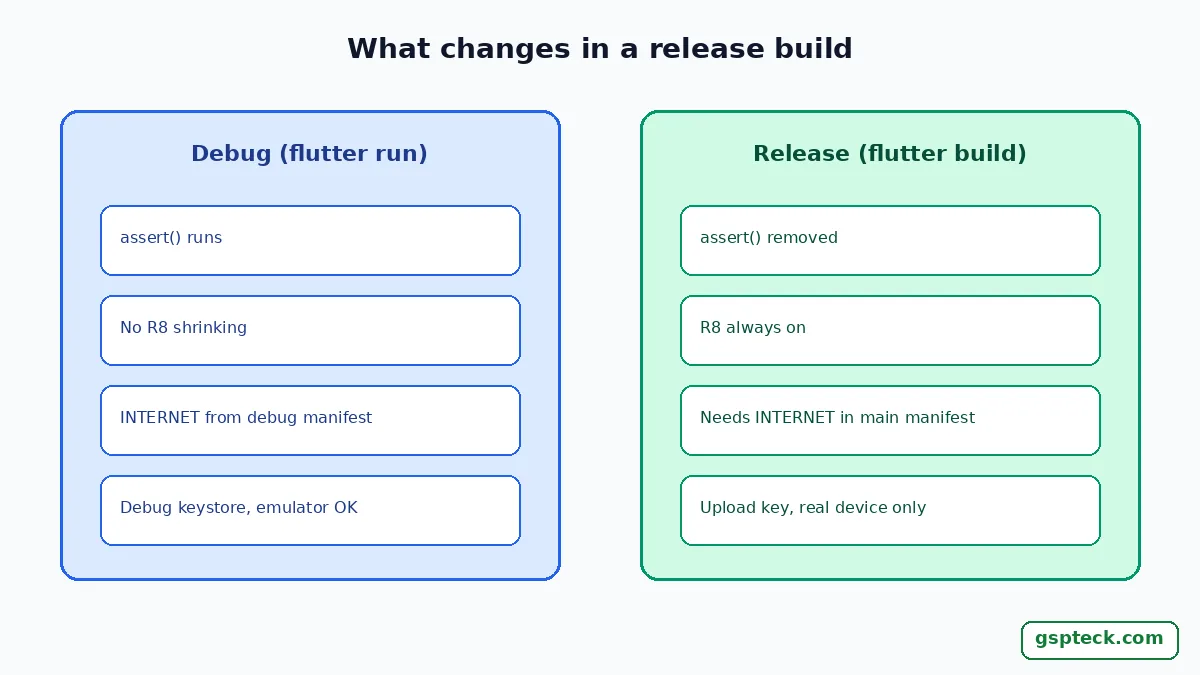
Flutter's build modes page lists the differences: in release mode "assertions are disabled", "debugging information is stripped out" and compilation is optimized for size and speed. Release mode also doesn't run on the emulator, so many developers first see a release build on a real phone.
| What | Debug (flutter run) | Release (flutter build) |
|---|---|---|
| assert() statements | Run | Removed |
| Android code shrinking (R8) | Off | Always on |
| INTERNET permission | From the debug manifest | Only if your main manifest declares it |
| Signing key | Debug keystore | Your upload key, then Play's app signing key |
| Runs on emulator | Yes | No (real device only) |
The 7 causes, and how to test each one
Test the release build on a real device before guessing: run flutter run --release with the phone connected and watch the log, or build with flutter build apk --release and install the APK. Then go through the list.
1. The INTERNET permission is missing from the main manifest
If network calls fail only in release, check android/app/src/main/AndroidManifest.xml first. Flutter's Android release guide says the standard template "doesn't include this tag but allows Internet access during development" so the tools can talk to the running app. Add <uses-permission android:name="android.permission.INTERNET"/> inside the manifest element, outside application.
2. R8 removed code a plugin needs
Flutter's guide says R8 code shrinking is enabled for release APKs and app bundles, and that the --no-shrink flag "has no effect": shrinking is always on in release. If the app crashes at the first call into a plugin, R8 may have removed or renamed classes that the plugin reaches by reflection. Android Gradle Plugin 8.0 also turned on R8 full mode by default, which shrinks more aggressively. The fix is a narrow keep rule in android/app/proguard-rules.pro for the class named in the crash, not switching shrinking off for good. Android's guide to configuring and troubleshooting R8 keep rules shows how to write one.
3. Your code depends on an assert()
Anything inside assert(...) doesn't run in release. A setup call hidden in an assert, or a kDebugMode branch that sets a value the rest of the app expects, works in debug and silently skips in release. Search the project for assert( and kDebugMode and move real work out of them.
4. The API URL or config only works on your machine
A base URL like http://localhost or a 192.168.x.x address works while the phone sits on your Wi-Fi next to the dev server, and fails everywhere else. Values passed with --dart-define during development also vanish if the release build command doesn't pass them. Print the effective base URL once at startup in a release build to check.
5. The API uses plain HTTP
Android's network security documentation says that from Android 9 (API level 28) "cleartext support is disabled by default". A release build talking to an http:// endpoint gets blocked. Move the API to HTTPS; only opt specific domains in to cleartext if you truly must.
6. Google Sign-In or Firebase rejects the release key
Sign-in that works in debug and fails in release usually means the release or Play app signing SHA-1 isn't registered in Firebase. Our fix for Google Sign-In failing after a Play release walks through which fingerprints to add. Firebase App Check is the same story: a debug provider that works locally isn't valid in release, as our note on staging Firebase App Check explains.
7. The build is signed with the wrong key
If the release APK installs over nothing but Play rejects the bundle, or a new build won't install over an older one, check the signing setup. A template project signs release with the debug key until you change it; the five-step fix for the "signed in debug mode" error sets up a real upload key.

How do I read the crash from a release build?
Run flutter run --release with the phone connected: the log still shows uncaught exceptions and the native stack trace. Without a cable, use adb logcat while you open the app. Stack traces from an obfuscated build need the symbol files to read; see our guide to obfuscation and uploading Crashlytics symbols.
A quick way to narrow it down is to change one thing at a time. If the app works with R8 minification turned off in the release build type as a test, cause 2 is confirmed; turn it back on and add the keep rule. If it works on Wi-Fi at your desk but not on mobile data, look at causes 4 and 5.
A 5-minute release check before every upload
This checklist catches all seven causes before Google Play's reviewers or your users do:
- Build with
flutter build apk --releaseand install it on a real phone, off your home Wi-Fi. - Sign in, load data from the network and open every screen that calls a plugin.
- Confirm the main manifest has the INTERNET permission and every API URL starts with https://.
- Check that the SHA-1 and SHA-256 of your upload key and Play's app signing key are in Firebase.
- Read the log once for warnings from R8 or plugins, then build the app bundle.
The full pre-launch list is in our Flutter and Firebase release checklist for Google Play. GSPTeck ships its own apps with this routine; see them on the GSPTeck homepage.

FAQ
Why does my Flutter app crash only in release mode?
The most common reasons are R8 removing code a plugin needs, code that only runs inside an assert, and a missing INTERNET permission in the main manifest. Run flutter run --release on a real device to see the actual exception.
Can I turn off R8 for a Flutter release build?
Flutter's documentation says the --no-shrink flag has no effect and that code shrinking is always enabled in release builds. Fix the cause with a keep rule instead of shipping without shrinking.
Why do network requests fail in my Flutter release APK?
Check that android/app/src/main/AndroidManifest.xml declares the INTERNET permission, that the URL isn't localhost or a local IP, and that it uses HTTPS. Android 9 and later block cleartext HTTP by default.
Can I test a Flutter release build on the emulator?
No. Flutter's build modes page says release mode is not supported on the simulator or emulator. Use a physical device for release testing.
Sources
- Flutter docs: Flutter's build modes (checked 2026-11-11)
- Flutter docs: Build and release an Android app (R8, manifest) (checked 2026-11-11)
- Android Developers: AGP 8.0 release notes (R8 full mode default) (checked 2026-11-11)
- Android Developers: Network security configuration (cleartext) (checked 2026-11-11)
- Android Developers Blog: Configure and troubleshoot R8 keep rules (checked 2026-11-11)