Flutter: Version Code Has Already Been Used on Google Play? How to Fix It (2026)
Why does Google Play say the version code has already been used?
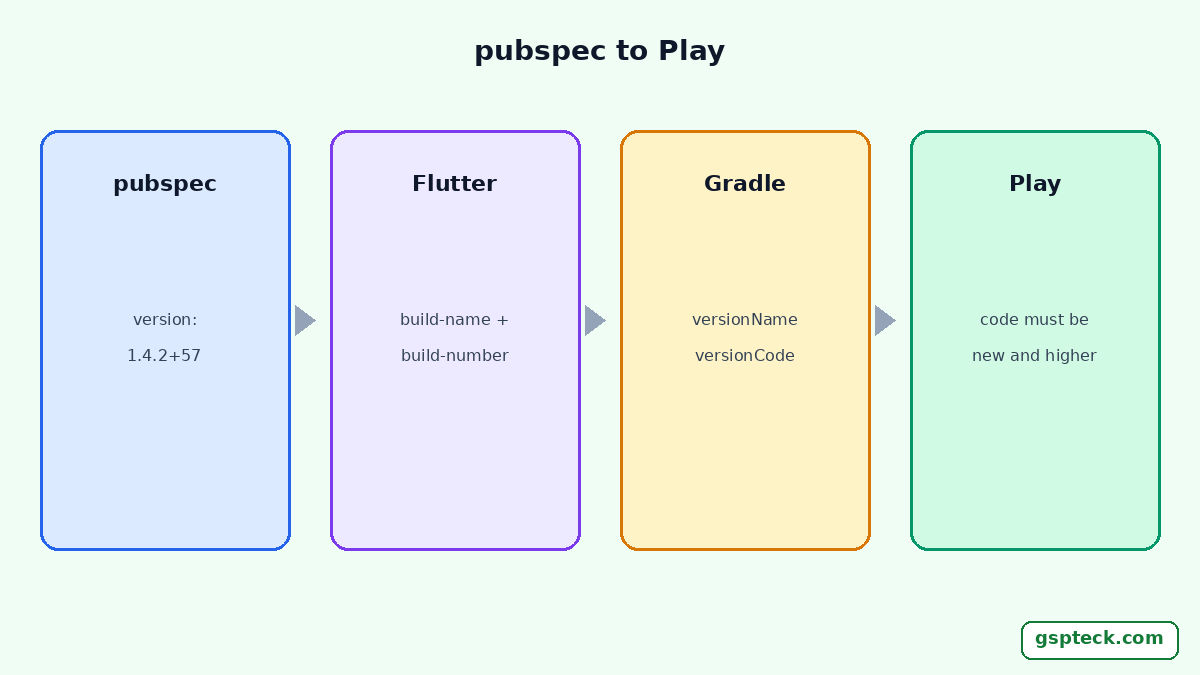
Because every Android App Bundle or APK you upload needs a versionCode that Play hasn't seen for that app before, and the one in your file matches an earlier upload. In a Flutter app the version code normally comes from the number after the + in pubspec.yaml: in version: 1.4.0+12, 1.4.0 becomes the versionName users see and 12 becomes the versionCode. Raise the build number (to 13 here), rebuild with flutter build appbundle and upload again. If the number in the bundle still doesn't change, something is overriding it: a hard-coded value in Gradle, a flavor, or a stale build. This guide covers each case, plus a numbering scheme that won't run out, from the routine I use to ship GSPTeck's Flutter apps.
How Flutter turns pubspec into a version code
The Flutter deployment docs describe the version line as three numbers separated by dots, followed by an optional build number after a +. On Android, the build name is used as versionName and the build number as versionCode. Both can be overridden on the command line with --build-name and --build-number. When you rebuild, Flutter writes the values into android/local.properties, and the default app template reads them in android/app/build.gradle (or build.gradle.kts) as flutter.versionCode and flutter.versionName.
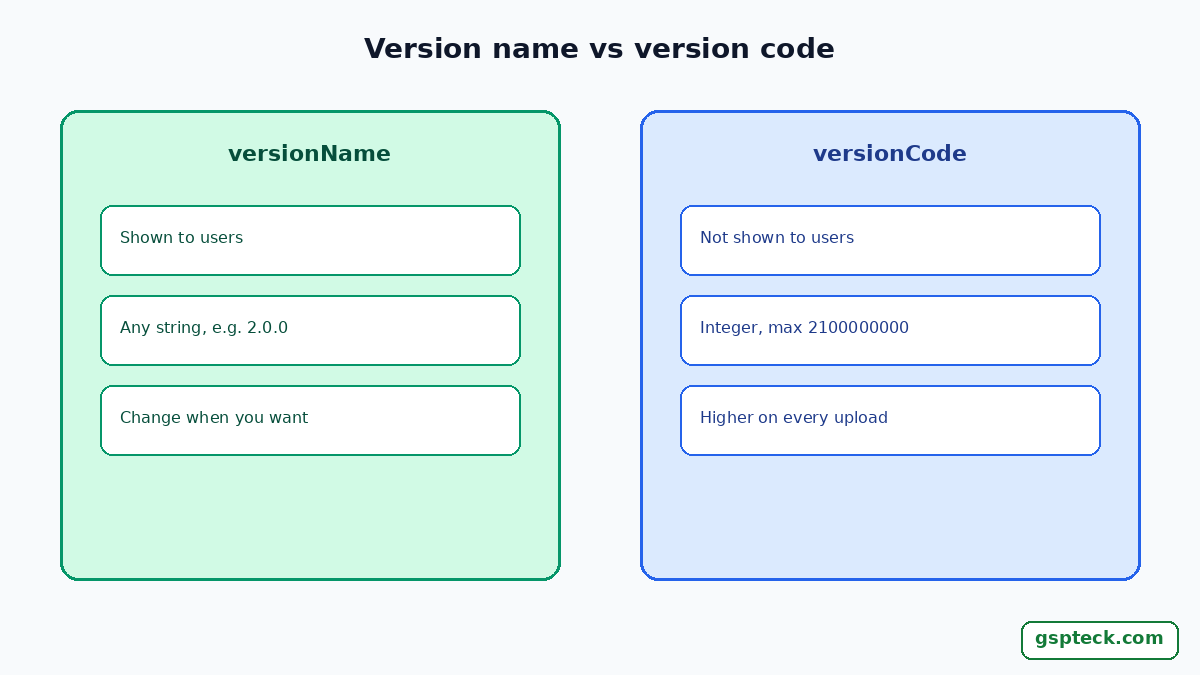
Android's own documentation explains why Play is strict: versionCode is a positive integer used as an internal version number, Android uses it to stop users installing a lower version over a higher one, and you can't upload an APK to the Play Store with a version code you've already used for a previous version. The greatest value Google Play allows is 2100000000.
Five reasons the version code didn't change
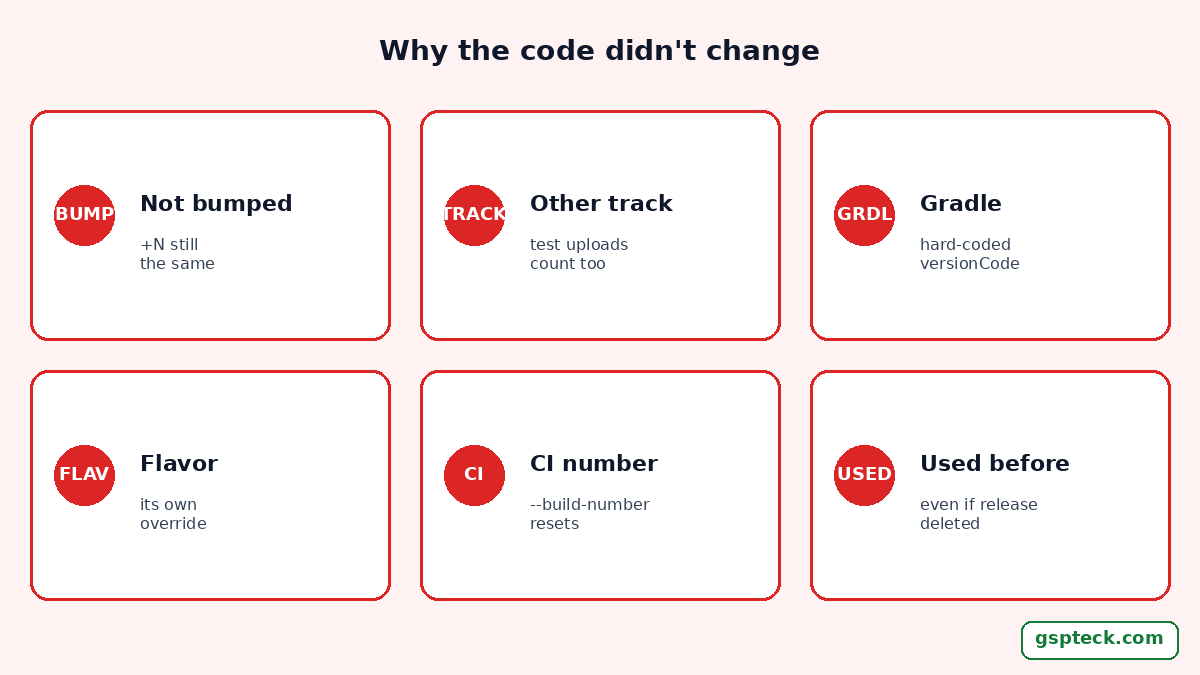
- You changed the version name, not the build number. Going from
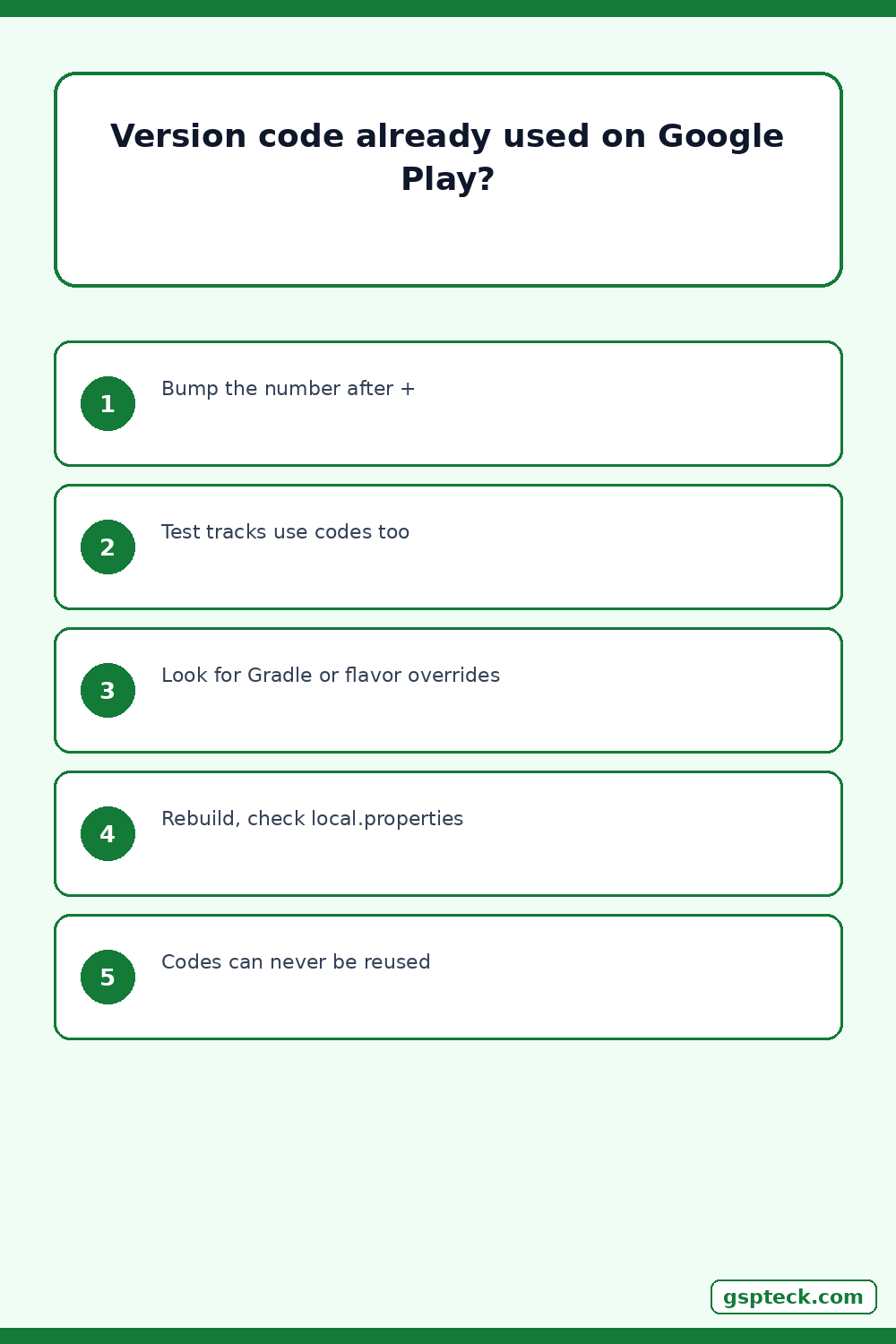
1.4.0+12to1.4.1+12changes what users see, but the version code is still 12. Bump the number after the+. - The code was already used on another track. Internal testing, closed testing, open testing and production are tracks of the same app, so a build number used for a test upload is taken for production too. Check the App bundle explorer in Play Console for the highest code you've uploaded, and go above it.
- Gradle hard-codes the value. Older projects, or ones edited by hand, may have
versionCode 1instead offlutter.versionCodeindefaultConfig. Then pubspec changes are ignored. Restore the Flutter value or manage it in one place on purpose. - A product flavor overrides it. Android lets flavors set their own
versionCode, and that wins overdefaultConfig. If you build with--flavor, check the flavor block. - CI passes an old number. A pipeline that runs
flutter build appbundle --build-number=$SOMETHINGoverrides pubspec. If that variable resets, for example because the pipeline was recreated, it will reuse codes. Make the CI number start above the highest code already on Play.
The quick fix, step by step
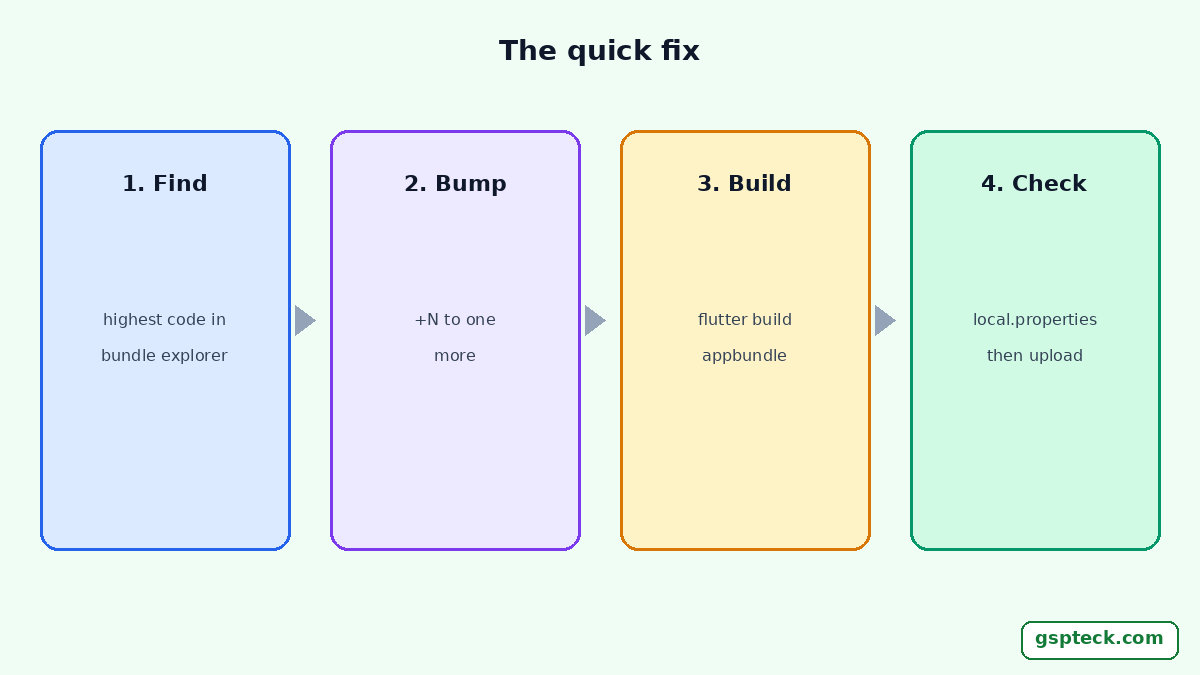
- In Play Console, open the App bundle explorer and note the highest version code listed for the app.
- In
pubspec.yaml, set the number after the+to one more than that. Keep the version name as it is unless you want users to see a new version. - Run
flutter cleanif you've changed flavors or Gradle files recently, thenflutter build appbundle(add--flavorif you use one). - Open
android/local.propertiesand check thatflutter.versionCodenow shows the new number. - Upload the new
.aabfrombuild/app/outputs/bundle/release/to the same release, replacing the rejected one.
If the error comes back with the same number, go through the five causes above; one of them is overriding your pubspec.
Check the bundle before you upload it
A quick check saves a failed upload. After building, open android/local.properties and confirm flutter.versionCode is the number you expect. Android merges the version values into the app's manifest at build time, so the bundle carries whatever Gradle resolved, not what pubspec says in isolation. In Play Console, each bundle you add to a release is listed with its version code, so compare it with the App bundle explorer before you roll out.
A numbering scheme that won't trip you up
Android's docs suggest starting at 1 and increasing the version code with every release, whatever the size of the release. In practice, pick one source of truth and stick to it:
- Manual, in pubspec: bump the
+Non every upload, including test uploads. Simple for one developer; commit the bump with the release. - From CI: pass
--build-numberfrom the pipeline's run counter, offset to start above your current highest code. - From the date: a code like
2026110108(year, month, day, two-digit counter) always increases and stays under Play's 2100000000 limit. Adding minutes as well would push it past the limit, so keep it to this length.
Whatever you choose, don't jump far ahead "just in case". A code can't go back down, and the 2100000000 ceiling is real. If you're also changing signing, keep the versioning change separate; our notes on resetting a lost upload key cover that path.
One more distinction helps when you plan numbers. The version code is for Android and Play only; Android's documentation says it doesn't need to resemble the release version users see, and that apps and publishing services shouldn't display it to users. So there's no reason to make the two match. A version name of 2.0.0 with a version code of 57 is perfectly normal, and it keeps you free to bump the code as often as you upload without changing what users read in the store.
Where this shows up in a normal release
Most duplicate-code errors happen in the busy days around a release: a quick fix uploaded to internal testing, then the "real" build reusing the same number. Bumping the build number is the first line of my Flutter and Firebase release checklist for Google Play. If you're shipping a new app, the same applies to every build you upload during closed testing with 12 testers for 14 days. When a build goes to production gradually, each fix during a staged rollout needs a new, higher code too. For this year's Android 16 changes in one place, see the Flutter Android 16 upgrade hub.
FAQ
Where is the versionCode in a Flutter app?
It's the number after the + in the version line of pubspec.yaml. Flutter writes it to android/local.properties as flutter.versionCode, and the default Gradle file reads it from there. You can override it with flutter build appbundle --build-number.
Can I reuse a version code if I deleted the release?
Plan on no. Android's documentation says you can't upload an APK with a version code already used for a previous version, so treat every uploaded code as taken and simply use the next number.
What is the maximum versionCode on Google Play?
Android's versioning documentation gives 2100000000 as the greatest value Google Play allows. Date-based schemes like yyyymmdd plus a two-digit counter stay under it.
Do I need to change the version name too?
No. Play only requires a new, higher versionCode. The versionName is the label users see, so change it when you want users to see a new version number.
Sources
- Android Developers: Version your app (checked 2026-11-01)
- Flutter docs: Build and release an Android app (checked 2026-11-01)