Firebase Storage 'unauthorized' in Flutter? The 5-Step Method to Find the Rule Saying No
Why does Flutter throw "firebase_storage/unauthorized" when I upload or download?
Because your Cloud Storage Security Rules denied the request. Firebase's Flutter error table describes storage/unauthorized as "User is not authorized to perform the desired action, check your security rules to ensure they are correct." The file, the bucket and your code can all be fine; the rule that matches the path you asked for simply didn't return allow. This guide gives a 5-step method to find the rule that is saying no, the path and wildcard mistakes behind most cases, and the neighbouring errors that look similar but need a different fix. Checked against the Firebase Storage and Security Rules documentation on 2026-11-19.
Which Storage error do you actually have?
Read e.code first, because three codes look alike and have different causes. Firebase's guide to handling Storage errors in Flutter recommends catching the FirebaseException and printing its code and message.
| Code | What Firebase says it means | Where to look |
|---|---|---|
unauthorized | Not authorized; check your security rules | The rule matching that exact path |
unauthenticated | User is unauthenticated; authenticate and try again | Firebase Auth sign-in state |
object-not-found | No object exists at the desired reference | The path or file name in your code |
quota-exceeded | Bucket quota exceeded; Cloud Storage for Firebase requires the Blaze plan | Billing plan and usage |
no-default-bucket | No bucket set in the config's storageBucket | firebase_options.dart |
Only the first row is a rules problem. If you see object-not-found on a download, the reference points somewhere empty, and changing rules won't help.
The 5-step "find the denying rule" method
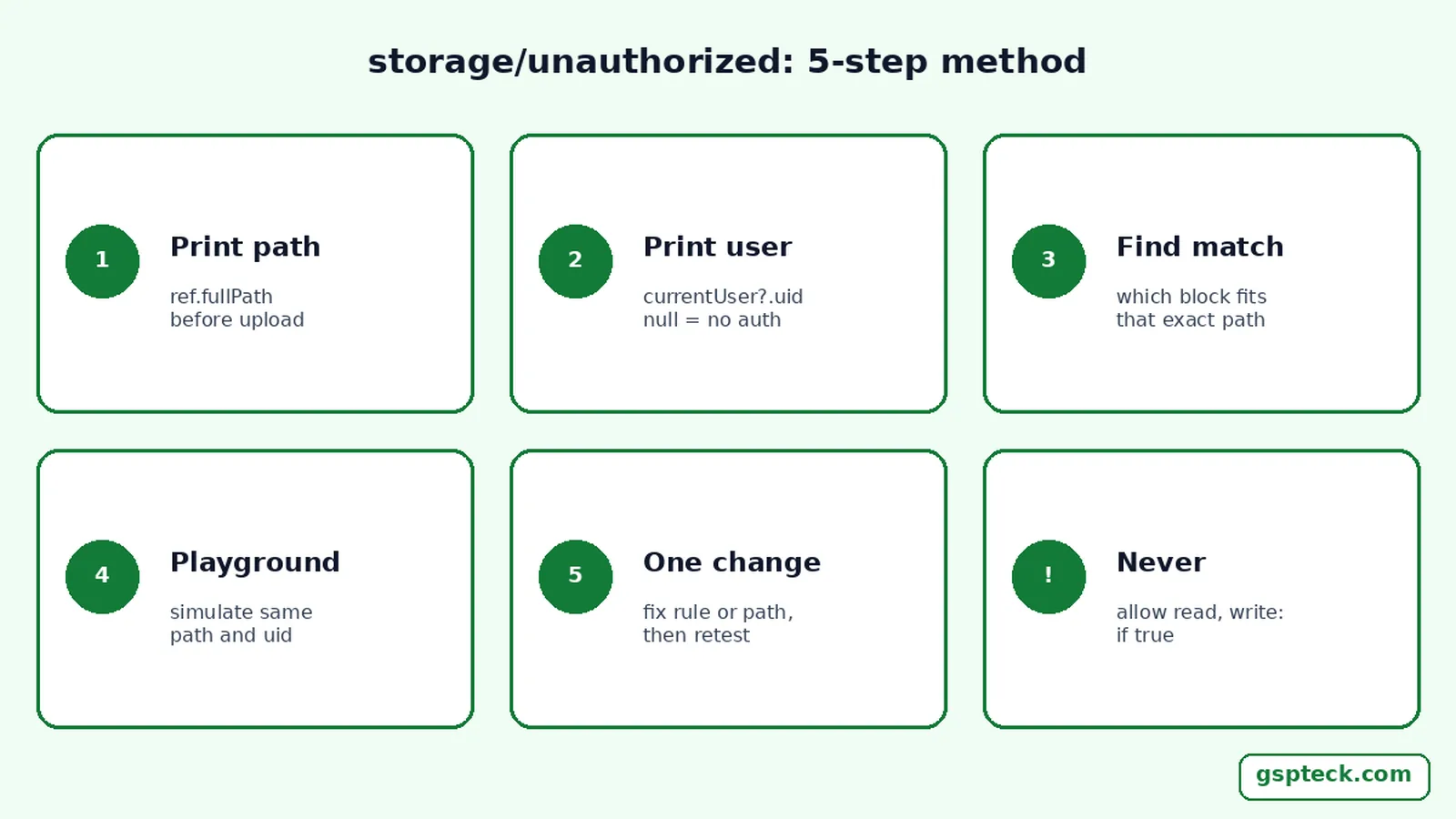
This is the order we work through in our own Flutter apps when an upload starts failing:
- Print the full path. Log
ref.fullPathright beforeputFileorgetDownloadURL. Rules match this string, not what you think the folder is called. - Print the user. Log
FirebaseAuth.instance.currentUser?.uidat the same moment. A null user meansrequest.authis null in your rules. - Find the matching
matchblock. Walk your rules from/b/{bucket}/odown and find the block whose pattern fits that path. If none fits, access is denied. - Replay it in the Rules Playground. In the console's Storage Rules editor, open the Rules Playground and simulate the same operation, path and signed-in uid.
- Fix the rule or the path, not both at once. Change one, deploy, and retest, so you know which change worked.

Why doesn't my wildcard match the path?
Usually because the path has a different number of segments than the rule. A single wildcard like {userId} matches exactly one path segment, so match /users/{userId}/{fileName} covers users/abc123/avatar.jpg but not users/abc123.jpg and not users/abc123/photos/avatar.jpg.
// Code uploads to: profile_images/abc123.png   (2 segments)
// Rule expects:    profile_images/{userId}/{file} (3 segments)  -> denied

// Option A: change the code
FirebaseStorage.instance
    .ref('profile_images/${user.uid}/avatar.png');

// Option B: change the rule
match /profile_images/{fileName} {
  allow write: if request.auth != null
    && fileName == request.auth.uid + '.png';
}
Recursive wildcards have a version trap too. Firebase's core syntax page says that in rules version 1, {path=**} matches one or more path elements, not zero or more, so /images/{prefix}/{file=**} doesn't match /images/badge.png. Version 2 matches zero or more, and you opt in by putting rules_version = '2'; at the top. The same page notes that the list operation, used by listAll(), only works with version 2.
Is request.auth.uid == userId failing for a signed-in user?
Then check that userId is actually defined by a wildcard in the path. Firebase's Security Rules and Authentication page shows the working shape: match /users/{userId}/{fileName} with allow write: if request.auth != null && request.auth.uid == userId;. If your rule compares against userId but the match pattern is /{allPaths=**}, there is no userId variable and the condition can't pass.
Also confirm the upload uses the same uid. Uploading to users/${someOtherId}/..., for example an ID from your Firestore document rather than the auth uid, fails by design. If Firestore writes in the same screen also fail, the cause is shared; our guide to Firestore permission-denied in Flutter covers the database side.
Can file size or content type cause "unauthorized"?
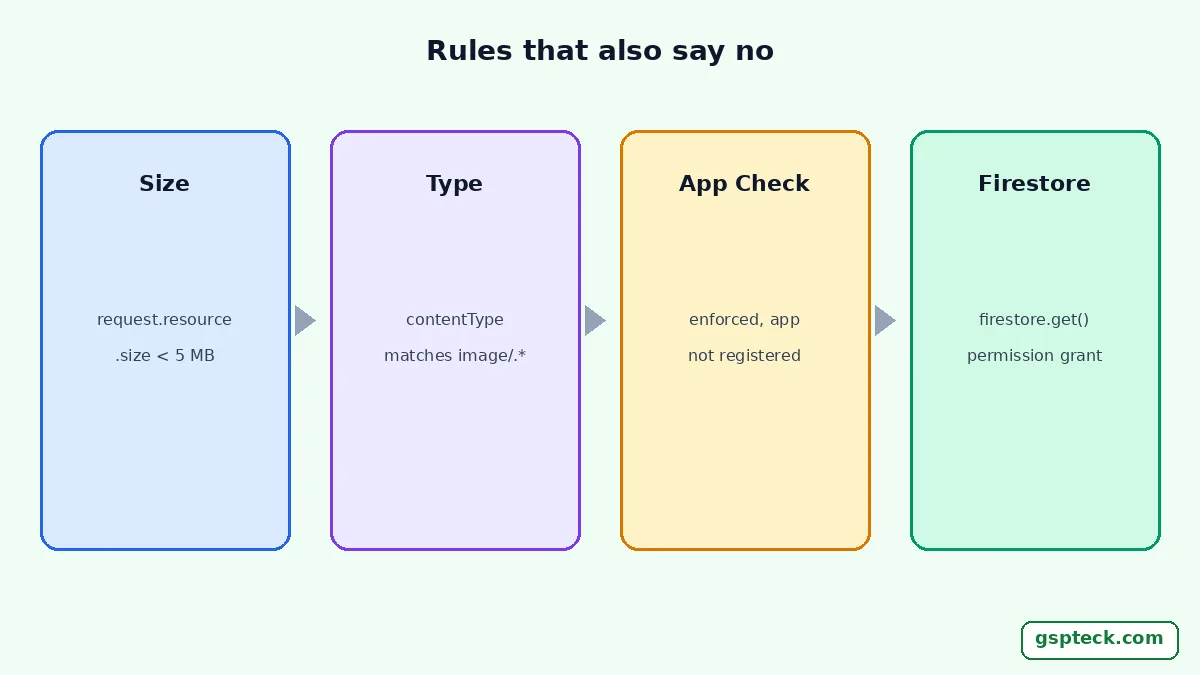
Yes, if your rules validate them. Firebase's rules-conditions page shows rules such as request.resource.size < 5 * 1024 * 1024 and request.resource.contentType.matches('image/.*'). A 6 MB photo, or a file uploaded with no content type, fails those conditions and comes back as unauthorized, not as a size error.
final meta = SettableMetadata(contentType: 'image/jpeg');
await ref.putFile(file, meta); // set contentType explicitly
Compress or resize images before upload so they pass your size rule. If your app later forwards the same media somewhere else, check that platform's limits as well; AutoX lists media size limits for a Telegram-to-X upload pipeline as one example.
Could App Check or a Firestore lookup be the reason?
They can, and both are easy to miss. Firebase's App Check documentation says that once you enable enforcement for a product, only registered apps can reach its backend resources, and that requests aren't required to carry valid tokens until enforcement is on. If you turned on enforcement for Storage and a debug build has no registered debug token, test that build before blaming your rules; our guide to staging Firebase App Check in Flutter walks through it.
Storage rules can also call firestore.get() and firestore.exists(). Firebase's rules-conditions page says that when you first save Storage rules that use these functions, the console or CLI prompts you to enable permissions connecting the two products. If that grant is missing, or the document path is wrong, the lookup fails and the request is denied.
How do you stop this coming back?
Keep the rules and the code paths in one place you review together. Write the storage paths your app uses as constants, keep a comment in the rules file naming each one, and deploy rules with an explicit project, for example firebase deploy --only storage --project your-project-id, so a staging rule set never lands on production by accident. If a callable returns UNAUTHENTICATED instead of a Storage rule denial, see the 5-step method for a Firebase callable UNAUTHENTICATED error in Flutter.
We review rules on a schedule; our security rules review cadence applies the same way to Storage. For context on what GSPTeck builds with Flutter and Firebase, see GSPTeck's apps and services.
FAQ
Should I set Storage rules to allow read, write: if true to fix it?
No. That makes every file in the bucket readable and writable by anyone. Firebase strongly recommends restricting access for production apps; fix the path or condition instead.
Why does the upload work in the Rules Playground but not in the app?
The simulation used different inputs. Compare the logged ref.fullPath, the signed-in uid and the content type from the app with what you typed into the Playground.
What is the difference between unauthorized and unauthenticated?
Unauthenticated means no signed-in user reached Storage. Unauthorized means a request arrived and your rules said no. Sign-in fixes the first; only a rule or path change fixes the second.
Do Storage rules changes take effect immediately?
Deploy the rules and retest with a fresh request. If a test still fails, check that you deployed to the project the app is actually configured for.
Sources
- Firebase: Handle errors for Cloud Storage on Flutter (checked 2026-11-19)
- Firebase: Core syntax of Security Rules for Cloud Storage (checked 2026-11-19)
- Firebase: Use conditions in Security Rules for Cloud Storage (checked 2026-11-19)
- Firebase: Security Rules and Firebase Authentication (checked 2026-11-19)
- Firebase: Quickly validate Security Rules (Rules Playground) (checked 2026-11-19)
- Firebase: Get started with App Check in Flutter apps (checked 2026-11-19)